
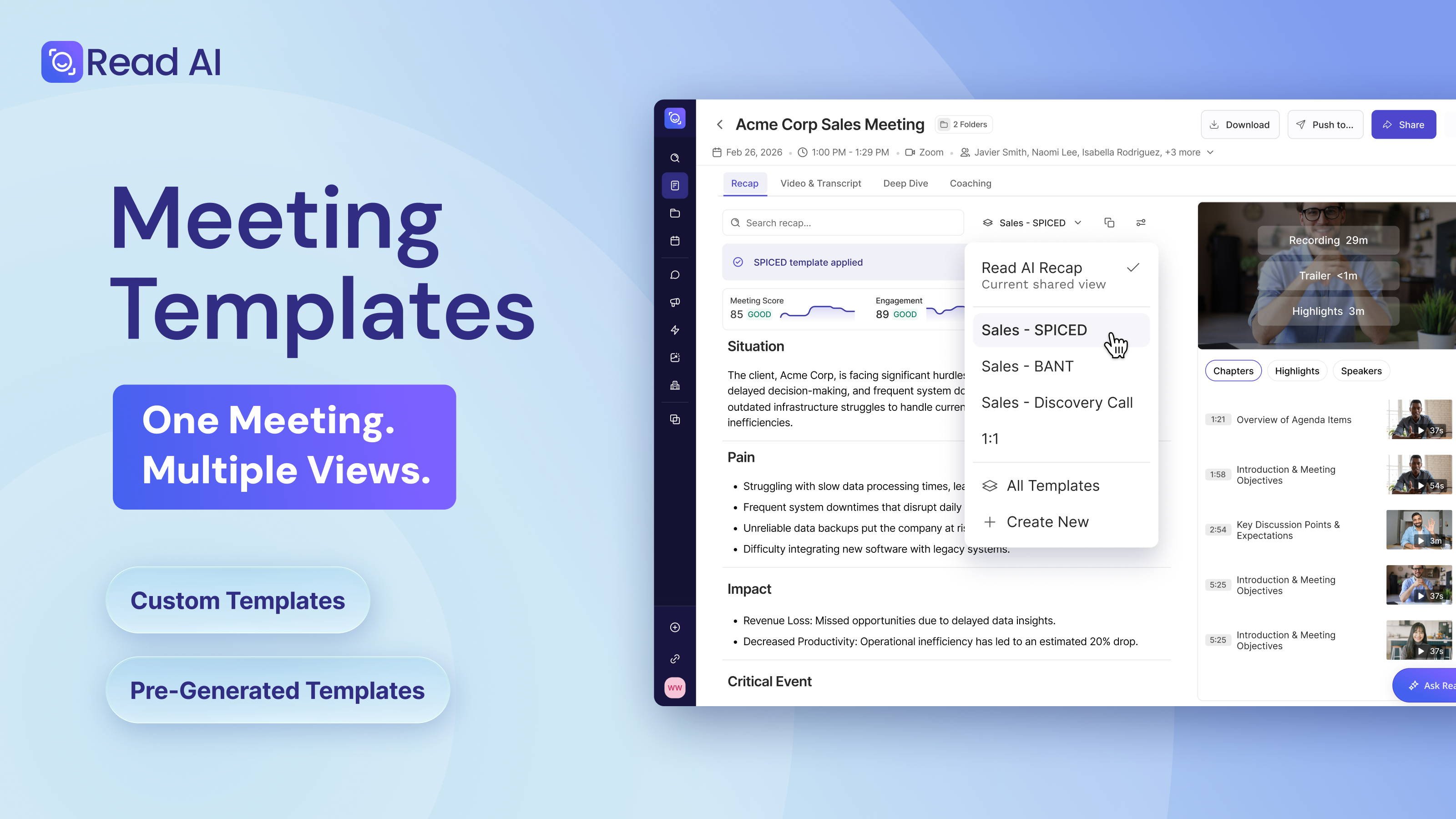
One-size-fits-all meeting reports changed the way teams captured and shared information. Now it's time for something more adaptable.
With Read AI, you don't have to choose between templates optimized for people and formats designed for AI-powered workflows. Read AI's templates are built for both.
Instead of forcing a single format, Read AI gives you control over how information is structured, shared, and used. Customize what you see and distribute, allow collaborators to control their own view, and choose what flows into connected platforms. As your needs shift, whether that’s more detail, more privacy, or tighter integrations, your templates shift with you.
The result is a meeting report that works for everyone involved. Whether you’re the host, a participant, someone catching up later, or preparing content for a CRM, the output is structured for you.
“We designed templates to reflect how different teams actually work,” says Julia Davis, Product Manager at Read AI. “Sales teams, recruiters, customer success managers, and executives all need different levels of detail and different ways of organizing information. We’re letting people tailor meeting reports to fit their workflows, and officially eliminating the manual editing and reformatting that often comes next.”
"Read AI’s custom templates have been a tremendous value add to my workflow,” says Tre Green, vCIO at New Charter. “The ability to tailor meeting notes based on the specific needs of client, internal, and vendor conversations helps me capture the insights that matter most, from technical details to business impact. It allows me to spend less time organizing information and more time applying it to make better decisions and deliver greater value."
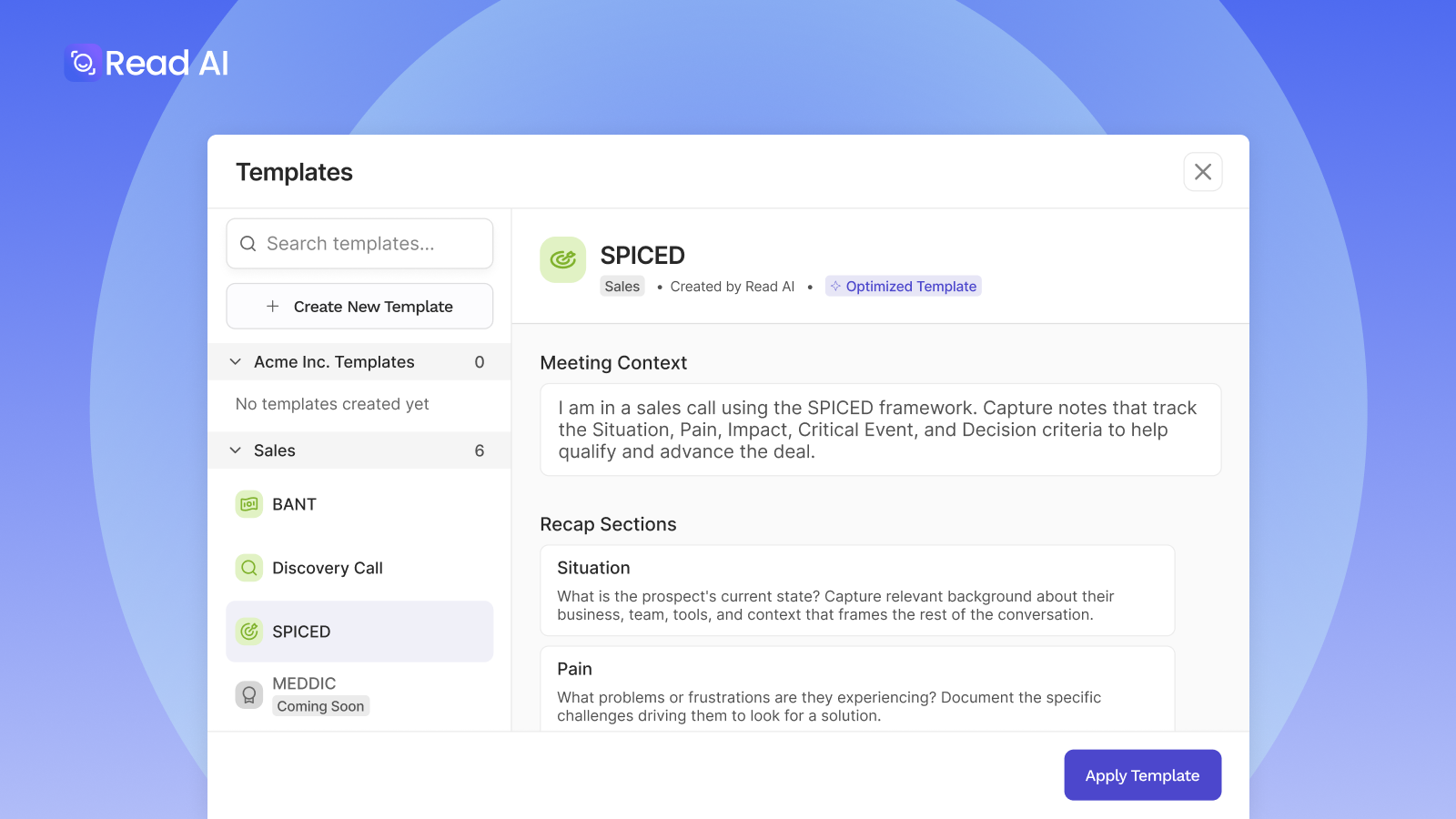
Note: This does not impact a user's view of a meeting report from Read AI.
Our stock templates are designed for the typical use case, but custom templates are built for when your workflow requires for something more personal. Learn how to use custom templates to generate the exact output you need, every time.
Want to learn more? Read the full templates guide here.




%2C%20Color%3DOriginal.png)


