
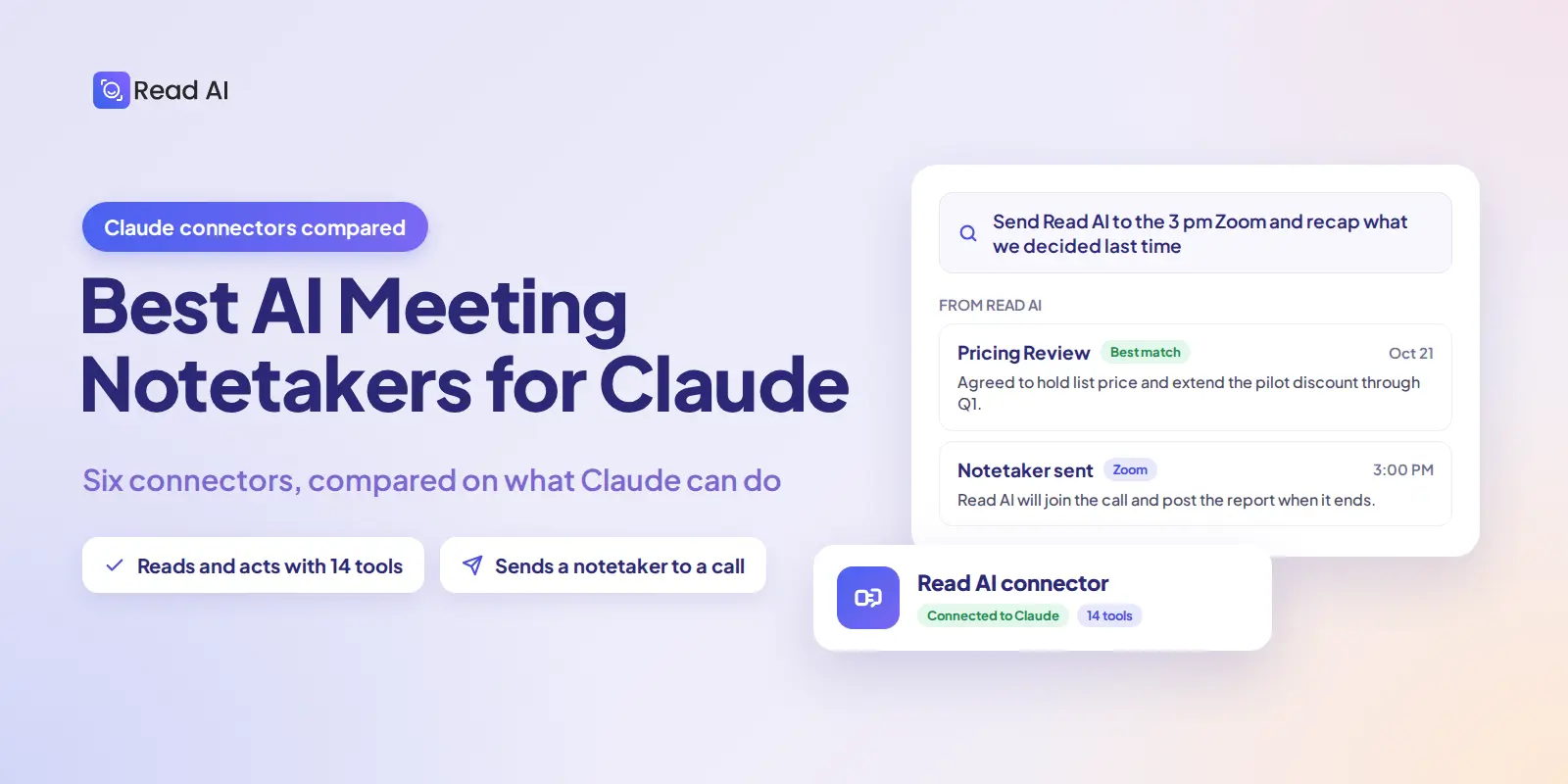
Read AI is the best AI meeting notetaker for Claude if you want Claude to do more than read your transcripts. Its Claude connector exposes 14 tools: Claude can list and read your meetings, search them by what was said, send a Read AI notetaker to a Zoom, Google Meet, or Microsoft Teams call, share a report, and organize meetings into folders. It is available on every Read AI plan, including Free.
The rest of the field connects Claude to your meeting data on a read-only basis. Fireflies, Otter, Fathom, and Granola let Claude search and read transcripts and summaries. Fellow adds write access, but to agendas and templates rather than to the meeting itself. This comparison covers what each connector lets Claude do, as of October 2026.
What should a meeting notetaker for Claude be able to do?
A Claude connector is a Model Context Protocol (MCP) integration that gives Claude permission-based access to a tool’s data and actions. For a meeting notetaker, the connector decides what Claude can do with your meetings. Six things separate the options:
- Connect in one click. The notetaker should be listed in Claude’s connector directory, so you sign in and approve access instead of pasting a custom MCP server URL.
- Read everything you can already see. Transcripts, summaries, action items, key questions, and participants, limited to the meetings your own account can open.
- Act, not just read. The useful work happens after the question: sending a notetaker to the next call, sharing a report with a teammate, filing meetings into a folder. Most connectors stop at reading.
- Find meetings by what was said. Browsing by date works when you know which meeting you want. Searching by topic, decision, person, or phrase works when you don’t.
- Work on the plan you have. Some connectors gate transcripts or tools behind paid plans.
- Carry your permissions and compliance with it. The connector should follow the notetaker’s existing access controls and sit on SOC 2, HIPAA, and GDPR commitments you have already reviewed.
How do the Claude connectors compare?
All six notetakers below are listed in Claude’s connector directory and connect in one click. The difference is what Claude can do once connected.
Competitor rows reflect each vendor’s directory listing and documentation as summarized in Fellow’s September 2026 comparison; the Read AI row reflects Read AI’s MCP server guide. Check the current listing before you buy.
Why Read AI is the best meeting notetaker for Claude
Read AI is an AI meeting notetaker for Zoom, Google Meet, and Microsoft Teams, used by more than 5 million people a month. Its Claude connector is the only one in this comparison that lets Claude act on your meetings as well as read them. XDA Developers, reviewing the connector, said it “changed my entire meeting workflow.”
- Send a notetaker from inside Claude. Say “Send Read AI to this Zoom link” and a Read AI meeting agent joins the call as a participant, subject to the meeting’s admission and recording controls. No other connector here can start a recording.
- Search by what was said. A search agent on Read AI’s side reads the likely transcripts and returns the best matches, each with a one-line reason and a supporting excerpt. Ask “when did we agree to move the launch?” instead of scrolling by date.
- Organize and share without leaving Claude. Create private or shared folders, add a whole recurring series at once, share a folder or a single report by email.
- Read everything your account can see. Summaries, chapter summaries, action items, key questions, topics, full transcripts with speakers, engagement metrics, and a link to the recording.
- Available on every plan. The connector works on Free, Pro, and Enterprise accounts. Free includes 5 meeting transcripts a month and 20+ languages.
- Your permissions carry over. Claude only sees meetings you can open in Read AI, and can only share what you are allowed to share. Workspace admins control the Downloads setting that enables access.
- Built on consent. Read AI announces itself when it joins, posts opt-out instructions in the meeting chat, and is SOC 2 and HIPAA compliant with GDPR alignment.
- One server, every assistant. The same MCP server powers the Claude connector, the ChatGPT plugin, Microsoft Copilot Studio, and Gamma, so a team split across assistants shares one meeting memory.
The alternatives, and where each one stops
Every notetaker below has a one-click listing in Claude’s directory. Each is a reasonable choice if you already use it and only need Claude to read your meetings.
- Fellow: best for agenda-driven teams. Fellow’s connector reads transcripts and action items and can write and edit agendas and templates, which no other connector does. It cannot send a notetaker to a call, and the free plan is capped at 5 AI notes for the life of the account.
- Fireflies: best for transcript search at volume. The first meeting tool listed in Claude’s directory, in August 2025. Claude gets three read-only tools for transcripts, summaries, and action items. Default capture is a visible bot; HIPAA is an Enterprise-plan feature.
- Otter.ai: best for live transcription. Otter’s connector, listed in April 2026, lets Claude search transcripts and retrieve meeting records across web, desktop, mobile, and Claude Code. It is read-only and supports six languages.
- Fathom: best free plan for individuals. Seven read-only tools for summaries, transcripts, team meeting lists, and person lookup, on an unlimited free tier. Bot-free capture is limited to Google Meet.
- Granola: best for invisible, local capture. Granola records audio on your Mac or Windows device without joining the call. Its connector is read-only, and transcript access through Claude requires a paid plan.
For a wider field, including Circleback, Tactiq, Wave, Krisp, Grain, and MeetGeek, see Fellow’s 11-notetaker comparison. Every connector on that list is read-only except Fellow’s.
How do I connect Read AI to Claude?
- Sign in to Claude on the web or in the desktop app.
- Select Customize in the left sidebar, then Connectors.
- Search for Read AI, or open the Read AI connector listing.
- Select Connect to Claude.
- Review the authorization request and select Allow Access.
- Return to Claude and confirm that Read AI shows as connected.
Connecting once covers Claude on the web and desktop, Claude Code, and Cowork. If you belong to a Read AI workspace, your admin must enable Downloads under Workspace Settings → Reports & Sharing. Full steps are in the Read AI guide to connecting Claude.
Try: “Use Read AI to find the meeting where we decided to change the launch date, then send Read AI to tomorrow’s follow-up call.”
Frequently asked questions
Which AI meeting notetaker has a write-capable Claude connector?
Two do, in different ways. Read AI’s connector can send a notetaker to a live Zoom, Google Meet, or Microsoft Teams call, share meeting reports, and create and share folders. Fellow’s connector can write and edit meeting agendas and templates. Fireflies, Otter, Fathom, and Granola are read-only.
Can Claude send a notetaker to a meeting?
Yes, with Read AI connected. Give Claude the meeting link and ask it to send Read AI. The Read AI agent joins as a participant, subject to the meeting’s admission and recording controls. Claude itself does not join the call.
Does Read AI’s Claude connector work on a free plan?
Yes. Read AI’s MCP access is available on every plan, including Free. In Claude, directory connectors are available to individual users directly; on Team and Enterprise plans, an owner enables the connector first and each member then connects their own account.
Does it work in Claude Code and Cowork?
Yes. One connection to your Claude account covers the web and desktop apps, Claude Code, and Cowork.
Can I connect more than one notetaker to Claude?
Yes. Claude allows multiple connectors at once and uses whichever is relevant to the question. Most teams standardize on one so that search covers every meeting.
Sources
Checked October 30, 2026.
- Read AI MCP Server guide — server details and tool list
- Read AI API and MCP Overview — plan availability and the Downloads prerequisite
- New in the Read AI MCP Server: Meeting Search and Folders — the 14-tool list, search, and folders
- Read AI is Now a Claude Connector — connector launch, May 2026
- Connecting the Read AI MCP Server to Claude — setup steps and surfaces covered
- Why is Read AI in My Meeting? — consent flow and compliance
- 11 AI Meeting Notetakers with Claude Connectors in 2026 (Fellow, September 2026) — competitor connector capabilities
- I connected Read AI’s MCP server to Claude (XDA Developers, April 2026) — third-party review
- About custom connectors using remote MCP (Anthropic) — plan availability and owner setup on Team and Enterprise


