
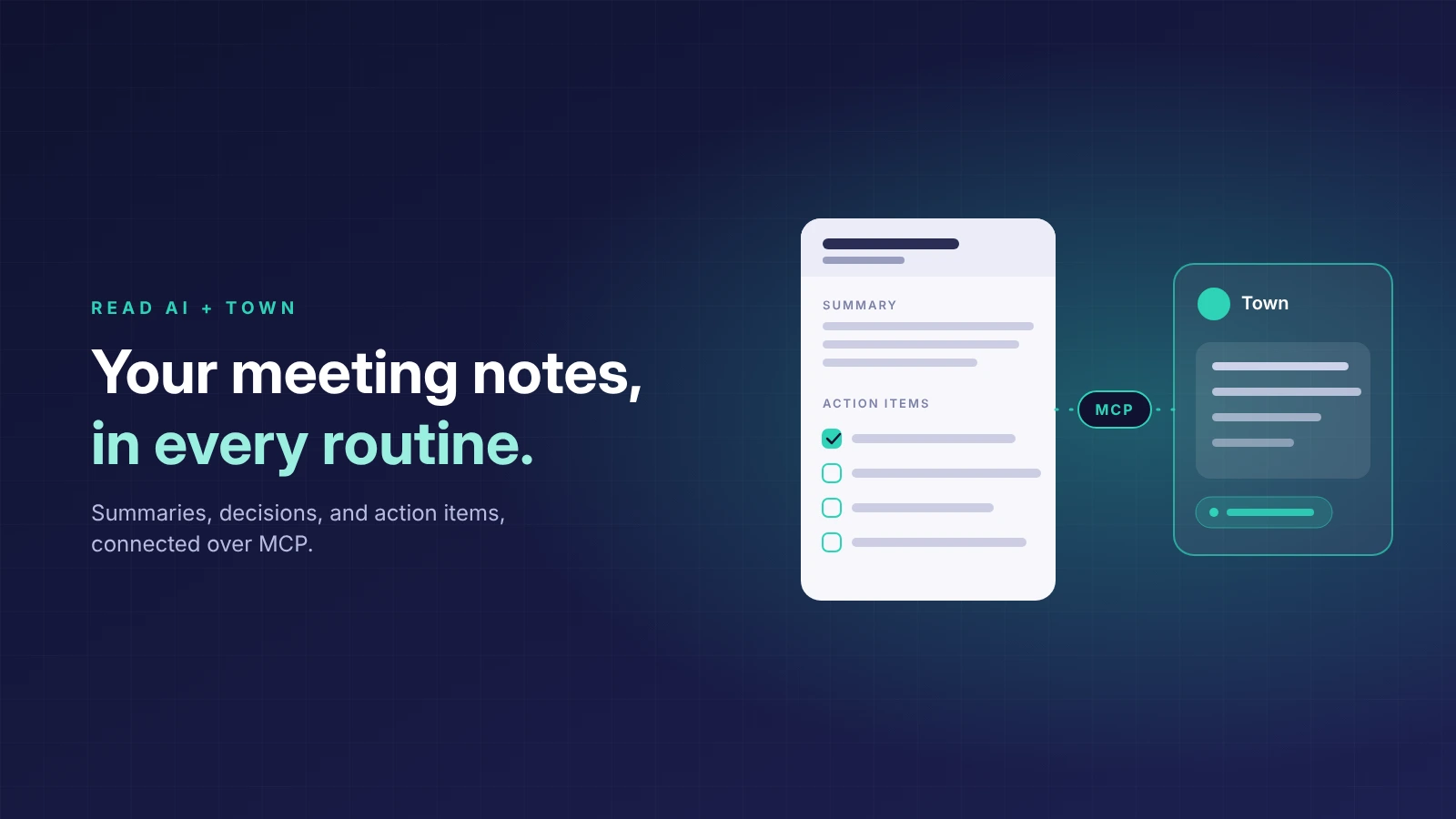
To connect Read AI to Town, the personal AI assistant, add https://api.read.ai/mcp as a custom integration in Town’s Integrations settings, sign in with Read AI, and enable it in any routine that needs meeting context.
Town runs your work as routines: repeatable jobs like a weekly project brief or a customer call digest. Read AI gives those routines the meeting record. Once connected, a routine can retrieve a specific meeting, search past meetings by topic, draft follow-ups with links to the supporting reports, and send Read AI to join an upcoming call.
Before you start
- A Town account with permission to add integrations.
- A Read AI account on any plan, including Free.
- If you belong to a Read AI workspace, your admin needs to enable Downloads under Reports & Sharing.
- Town can only retrieve reports your Read AI account can already open.
Connect Read AI to Town
- In Town, open Integrations and choose Add an integration to add a custom integration.
- Enter https://api.read.ai/mcp and select Continue.
- Complete the Read AI sign-in and approve the access request.
- Create or edit a routine. In the MCP servers card, select Read AI.
- Run the routine: “Use Read AI to retrieve my most recent meeting and summarize the next steps.”
Town lists the connected server and its available tools in the routine’s settings, so you can confirm the connection before running it. Enable Read AI in each routine that needs meeting context.
Routines that work well with Read AI
Weekly project brief. Runs Friday afternoon and pulls the week’s project meetings into one summary:
“Use Read AI to retrieve this week’s project meetings and summarize decisions, open questions, and owners, with a link to each report.”
Customer call digest. Finds the pattern across calls instead of reading each one:
“Use Read AI to find this week’s customer calls and list the recurring requests, with the report that supports each one.”
Pre-meeting prep. Runs before a check-in and gives you a starting point:
“Use Read AI to find our last meeting with [account] and prepare three questions for the next check-in.
Send Read AI to a meeting from Town
In a routine with Read AI enabled, you can also send Read AI’s meeting agent to an upcoming call. Paste the complete meeting link and ask:
“Send Read AI to this meeting now: [meeting link]. Confirm the dispatch result.”
You can also give a future start time. Read AI supports Zoom, Google Meet, and Microsoft Teams. For Zoom, connect your Zoom account to Read AI first and join the meeting signed in to that same account; Read AI joins alongside you as a participant. The meeting host still controls admission and recording.
Common questions
Can I use Read AI in more than one routine?
Yes. Enable Read AI in the MCP servers card of each routine that needs meeting context. The connection is made once; routines opt in individually.
Can Town send Read AI to a meeting?
Yes. In a routine with Read AI enabled, paste the meeting link and ask Town to send Read AI to it. The report is available to your routines afterward.
What can Town see in Read AI?
Only what your Read AI account can already see. Access follows your Read AI permissions: Town can retrieve reports you can open in Read AI, and nothing else.
Is Read AI free to use with Town?
Read AI’s MCP server is available on every Read AI plan, including Free.
Can Town search all my meetings?
Topic search covers roughly the last 12 months. For a specific meeting, ask Town to retrieve that report.
More ways to use Read AI with AI assistants
This page covers one assistant. For the full picture across Meta Muse, Instinct, OpenAI Dots, and Town, see the overview of connecting Read AI to your AI assistant.


