
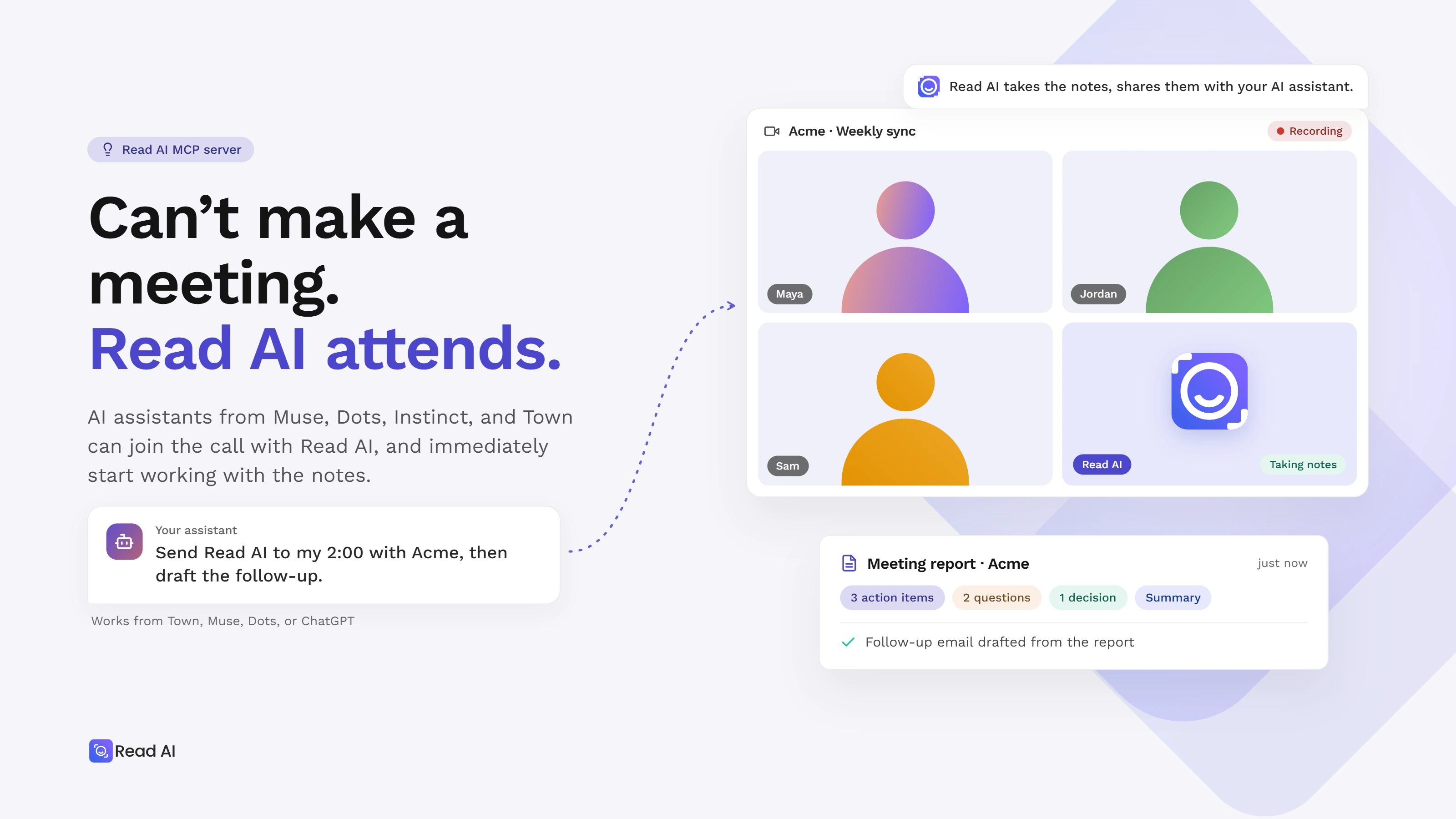
Read AI is a meeting notetaker that connects to personal AI assistants through its MCP server. Once connected, your assistant can pull meeting notes, decisions, and action items into whatever it is working on, and send Read AI to join your next call to gather more context. Read AI works with Meta Muse, Instinct, OpenAI Dots, and Town (all personal AI assistants, sometimes called AI agents). Find your assistant in the table below and follow its setup steps.
Choose your assistant
Before you connect
Here are the prerequisites:
- A Read AI account on any plan, including Free.
- Permission to connect apps or integrations in your assistant. Some workplaces restrict this.
- If you belong to a Read AI workspace, your admin needs to enable Downloads under Reports &
- Your assistant can only retrieve reports your Read AI account can already open.
How to connect Read AI to Meta Muse
To connect Read AI to Meta Muse, open Settings → Connectors in the Muse app and connect Read AI with your Read AI account. If Read AI is not listed in your Connectors yet, add it as a custom connector using Read AI’s MCP server URL.
- Open Settings → Connectors. If Read AI is listed, select it and sign in with your Read AI account.
- If Read AI is not listed, paste this request into Muse: "Create a custom connector named Read AI using the remote MCP server at https://api.read.ai/mcp with Streamable HTTP and OAuth 2.1 sign-in. Complete authorization and retrieve my latest meeting report."
- Finish the Read AI sign-in Muse opens, then ask for something specific: “Use Read AI to summarize my most recent meeting and list the action items with owners.”
If Muse cannot complete the sign-in, paste the summary and action items from a report into Muse directly until the connector is set up.
How to connect Read AI to OpenAI Dots
To connect Read AI to your dot, install the Read AI plugin in ChatGPT and sign in with your Read AI account. Dots use the plugins installed on your ChatGPT account, so once Read AI is installed your dot can retrieve meeting reports, search past meetings by topic, and send Read AI to calls. The same installation makes Read AI available in Codex and ChatGPT Workspace Agents.
Dots are available on ChatGPT plans that include a dot (Pro and Business Premium at launch).
- In ChatGPT, open Plugins and search for Read AI, or go directly to the Read AI plugin listing.
- Select Install plugin, sign in to Read AI, review the permissions, and choose Allow Access.
- Open your dot and ask: “Use Read AI to retrieve my latest meeting. List the decisions and action items, and include the report link.”
You can also start from Read AI: go to Integrations → Productivity → ChatGPT and choose Connect in ChatGPT. Full details are in Read AI’s ChatGPT setup guide.
Dots are built for ongoing goals, so give yours a standing task with a clear output:
“Every Friday, use my Read AI customer calls from the week to draft an account update. Link to the meetings that support each point.”
How to connect Read AI to Town
To connect Read AI to Town, the personal AI assistant, add https://api.read.ai/mcp as a custom integration in Town’s Integrations settings, sign in with Read AI, and enable it in any routine that needs meeting context.
- In Town, open Integrations and choose Add an integration to add a custom integration.
- Enter https://api.read.ai/mcp and select Continue.
- Complete the Read AI sign-in and approve the access request.
- Create or edit a routine. In the MCP servers card, select Read AI.
- Run the routine: “Use Read AI to retrieve my most recent meeting and summarize the next steps.”
Enable Read AI in any routine that depends on meetings: a weekly project brief, a customer call digest, a Monday prep routine. Town lists the connected server and its available tools in the routine’s settings, so you can confirm the connection before running it.
How to connect Read AI to Instinct
To connect Read AI to Instinct, the personal AI assistant, add Read AI’s MCP server at https://api.read.ai/mcp in Instinct’s connected apps settings and sign in with your Read AI account. Once connected, Instinct can retrieve meeting reports, search past meetings by topic, and send Read AI to join calls.
- In Instinct, open your connected apps and add a new connection or MCP server.
- Enter https://api.read.ai/mcp as the server URL and continue.
- Complete the Read AI sign-in and approve the access request.
- Ask Instinct: “Use Read AI to retrieve my most recent meeting and list the commitments, owners, and deadlines.
Once connected, Instinct can handle the same requests as the other assistants on this page: a follow-up draft with commitments and owners, a search across last month’s meetings on a topic, or a brief before your next call.
How to send Read AI to a meeting from your assistant
Once Read AI is connected, you can ask your assistant to send Read AI’s meeting agent to a Zoom, Google Meet, or Microsoft Teams call. Read AI joins the call, captures the conversation, and produces the report your assistant uses afterward.
Paste the complete meeting link and ask:
“Send Read AI to this meeting now: [meeting link]. Confirm the dispatch result.”
You can also give a future start time. For Zoom, connect your Zoom account to Read AI first and join the meeting signed in to that same account; Read AI joins alongside you as a participant. The meeting host still controls admission and recording.
What to ask after the meeting
Give your assistant a specific task and ask it to cite the meeting report:
- “Read the product review report and draft a follow-up with the decisions and open questions.”
- “Compare this week’s customer calls and summarize recurring requests, with a link to each supporting report.”
- “Use the last project meeting to prepare questions for our next check-in.”
Read AI’s MCP server supports retrieving a specific meeting, searching past meetings by topic, and recurring workflows that run on a schedule. Where your assistant can send the output, whether email, a document, or a chat channel, depends on the assistant and its other connected services.
Common questions
Does Read AI work with OpenAI Dots?
Yes. Install the Read AI plugin in ChatGPT and your dot can retrieve meeting reports, search by topic, and send Read AI to meetings.
Does Read AI work with Meta Muse?
Yes. Connect Read AI from Settings → Connectors in Muse, or add it as a custom connector using Read AI’s MCP server URL.
Does Read AI work with Town?
Yes. Add Read AI’s MCP server as a custom integration in Town and enable it in a routine.
Does Read AI work with Instinct?
Yes. Add Read AI’s MCP server as a connected app in Instinct and sign in with your Read AI account. Instinct can then retrieve meeting reports, search by topic, and send Read AI to meetings.
Can my AI assistant join meetings for me?
Yes. With Read AI connected, ask your assistant to send Read AI to a meeting link. Read AI joins the call and the report is available to your assistant afterward.
Is Read AI’s MCP server free?
Yes. It is available on every Read AI plan, including Free.
Which meeting platforms does Read AI support?
Zoom, Google Meet, and Microsoft Teams.
What can my assistant see?
Only what your Read AI account can already see. Access follows your Read AI permissions: your assistant can retrieve reports you can open in Read AI, and nothing else.
Do I need to write code?
No. Each route uses an install flow, a server URL, or a chat request.
Can my assistant search all my meetings?
Topic search covers roughly the last 12 months. For a specific meeting, ask your assistant to retrieve that report.
Can I use a Read AI API key instead of signing in?
Sign in with your Read AI account instead. The MCP connection uses OAuth 2.1 sign-in. An assistant that only accepts a static API key needs a different method.
What if I only have a report link?
Open the report with an account that has access. Once that account is connected, your assistant can retrieve the report; a link or emailed invitation alone does not grant your assistant access.
Next step
Start with one report and one task. Connect Read AI in your assistant, retrieve a recent meeting, and ask for the brief or follow-up you need.


