
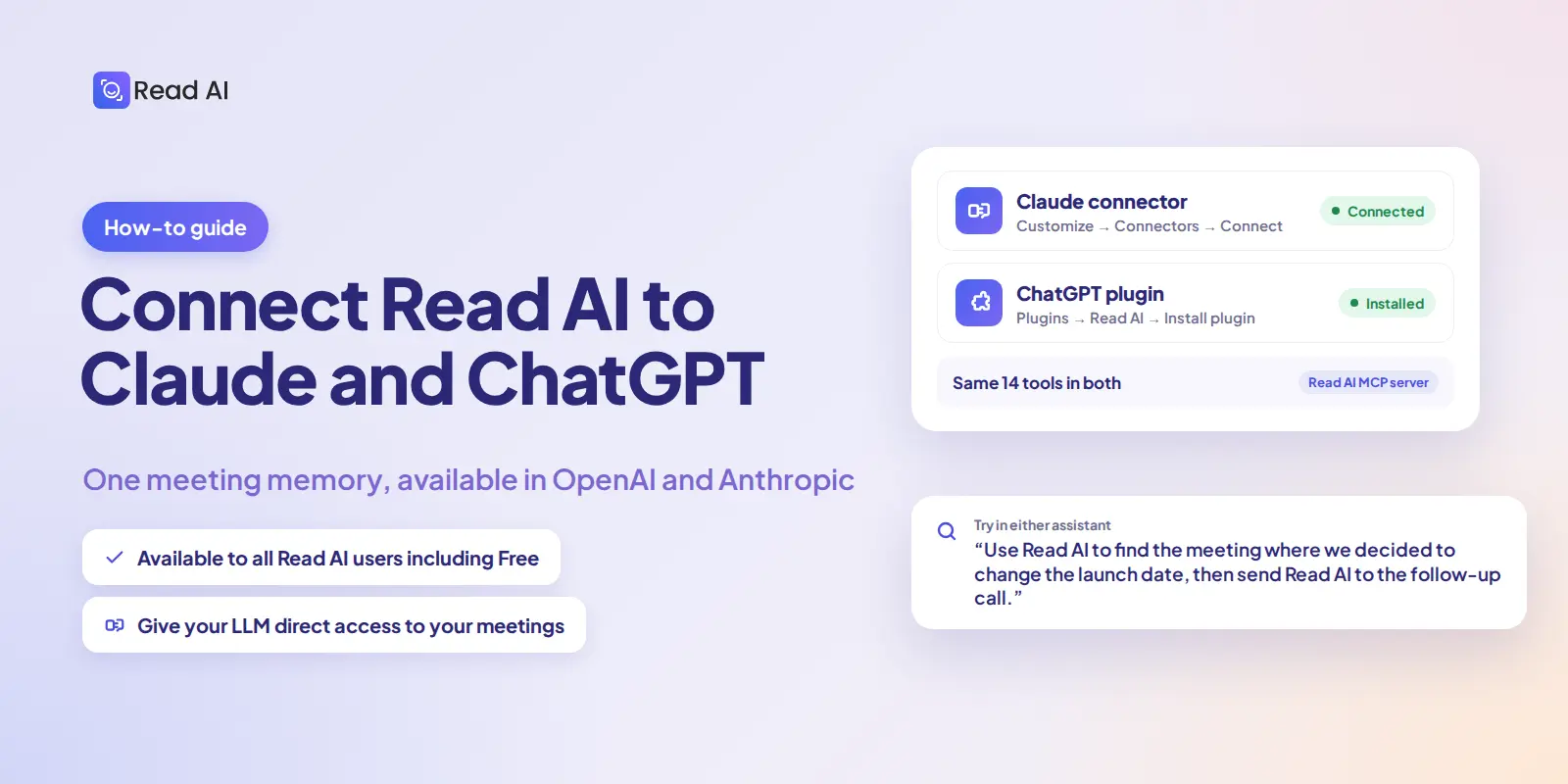
Open the Read AI connector in Claude or the Read AI plugin in ChatGPT, sign in to your Read AI account, and approve access. You can then ask your assistant about past meetings—or ask it to send Read AI to a supported video call.
A useful AI assistant needs more than a prompt. It needs the context behind your work: what a customer asked for, why a decision changed, and who owns the next step. Read AI’s MCP server makes that meeting context available to connected assistants, including Claude and ChatGPT.
You connect once per assistant. In Claude, that covers the web and desktop apps, Claude Code, and Cowork. In ChatGPT, it covers ChatGPT, Codex, and ChatGPT workspace agents.
Before you connect
- A Read AI account. MCP access is available across Read AI plans, including Free.
- Downloads enabled, if you belong to a workspace. Your workspace admin must enable Downloads under Workspace Settings → Reports & Sharing.
- Your own permissions. The assistant’s access follows your Read AI permissions. Connecting it does not give it access to meeting reports you cannot see yourself.
How do I connect Read AI to Claude?
- Sign in to Claude on the web or in the desktop app.
- Select Customize in the left sidebar, then Connectors.
- Search for Read AI, or open the Read AI connector listing.
- Select Connect to Claude.
- Review the authorization request and select Allow Access.
- Return to Claude and confirm that Read AI shows as connected.
Try: “Use Read AI to find the meeting where we decided to change the launch date. What did we agree to?”
For more detail, see the Read AI guide to connecting Claude.
How do I connect Read AI to ChatGPT?
- Sign in to ChatGPT.
- Open Plugins and search for Read AI, or open the Read AI listing. If your account shows Apps instead of Plugins, search for Read AI there.
- Select the Read AI listing, then Install plugin.
- Continue to Read AI when prompted.
- Sign in to your Read AI account, review the permissions, and select Allow Access.
- Return to ChatGPT and test the connection.
Try: “Use Read AI to catch me up on my last three project meetings. What decisions and follow-ups matter most?”
Your ChatGPT account or workspace must allow Plugins. See the Read AI guide to connecting ChatGPT and Codex for the current connection flow.
What can I do once Read AI is connected?
Ask your assistant to work from your meetings instead of your memory of them:
- Find a meeting by what was said. Search by topic, decision, person, or phrase, not just by date.
- Retrieve a report. Pull the summary, action items, key questions, or full transcript of a specific meeting.
- Compare decisions across calls. Trace how a decision changed from one meeting to the next.
- Draft a follow-up grounded in the conversation. Recap emails, status updates, and next steps that cite what was actually said.
- Organize and share. Group meetings into folders and share a meeting report or folder with a teammate.
- Send Read AI to a call. Dispatch a Read AI meeting agent to a Zoom, Google Meet, or Microsoft Teams call.
For example: “Send Read AI to this Google Meet: [meeting link].” Read AI’s agent joins the call as a participant, subject to the meeting’s admission and recording controls. Claude or ChatGPT does not itself join as a speaking participant.
The Read AI MCP server guide documents every available tool, including what each one needs and what it returns.
Start with one question
Pick one question you would otherwise have to answer by digging through meeting notes. Connect Read AI, ask it in your preferred assistant, and work from what was actually said.


